

Updated on November 26, 2026. Sources checked on Nov 26, 2026: CFPB "Debt log" tool (Your Money, Your Goals), CFPB: the minimum-payment box on your credit card statement, USA.gov: Student loans
The U.S. Consumer Financial Protection Bureau (CFPB) puts the starting point plainly: "Before you can make a plan for paying your debt, you first have to know what you owe." Its Debt log tool (accessed Nov 26, 2026) says the first step is "to make a list of who you owe money to and how much you owe them." This template is that list, plus formulas that keep it current.
This page is about tracking. For the full strategy (listing debts, talking to creditors, debt management plans, avoiding debt relief scams), see the debt payoff plan guide.
What's inside the debt tracker spreadsheet
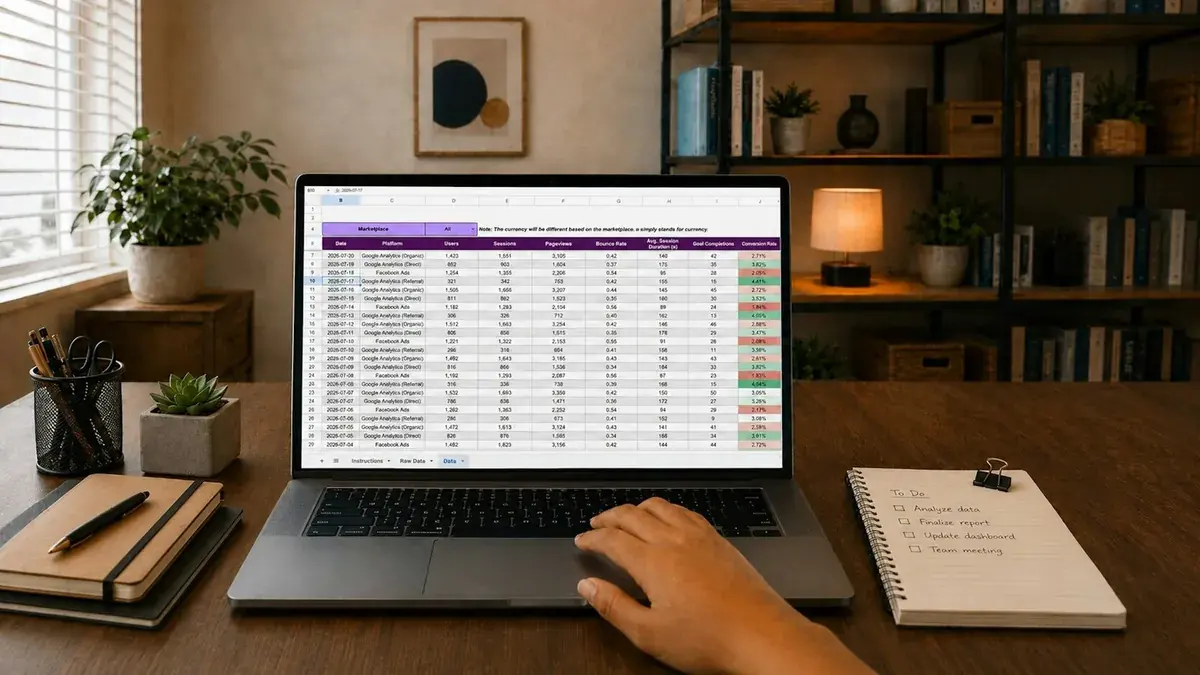
The workbook has five tabs. It doesn't connect to any bank and has no currency symbol, so you type amounts in your own currency. Yellow cells are for you to fill in. Blue cells are formulas. Four sample debts and four sample payments are marked "(sample - delete me)".
| Tab | What it does | What you type |
|---|---|---|
| Start here | Instructions, how the balance formula works, the monthly routine | Nothing |
| Debts | One row per debt, room for 30 debts | Name, type, lender, starting balance, APR, minimum, due day, payoff priority |
| Payments | One row per payment, room for 500 rows | Date, debt, amount paid, adjustment (interest and fees), notes |
| Summary | Totals plus a snowball order and an avalanche order | Nothing (all formulas) |
| Lists | The Type drop-down and helper columns for the order lists | Nothing (don't edit it) |
The Debts tab, column by column
| Column | What it is | Filled by |
|---|---|---|
| Debt name | A unique name, e.g. "Visa …1234" or "Car loan" | You |
| Type | Drop-down: Credit card, Personal loan, Car loan, Student loan, Medical, Buy now pay later, Other | You |
| Lender | Card issuer, bank, loan servicer, hospital, BNPL company | You |
| Starting balance | What you owed on the day you started tracking | You (once) |
| Current balance | Starting balance + Adjustments − Payments, pulled from the Payments tab with SUMIFS | Formula |
| APR (%) | Type the number only: 24.99 for 24.99%, 0 for a 0% plan | You |
| Minimum payment | The minimum or regular monthly payment | You |
| Due day (1-31) | Day of the month the payment is due | You |
| Payoff priority | 1 for the debt that gets your extra money first, then 2, 3… | You |
| Monthly interest estimate | Current balance × APR ÷ 12 | Formula |
| Paid off % | 1 − Current balance ÷ Starting balance | Formula |
| Status | "Active", or "Paid off" once the balance reaches zero (the row turns green) | Formula |
How the current balance works (read this once)
Interest is not added automatically. Lenders work out interest their own way (often daily), and a spreadsheet can't copy that exactly. So the template has an Adjustment (+interest/fees) column in the Payments tab:
- Current balance = Starting balance + all Adjustments for that debt − all Amounts paid for that debt.
- Each month, copy the interest charged and any fees from the statement into Adjustment as a positive number. Log a credit or refund as a negative number.
- New purchases on a card you're paying off also go in Adjustment (positive), because they add to what you owe.
- After each statement, the Current balance should match the statement balance. If it doesn't, add one Adjustment row for the difference and write the reason in Notes.
The Payments tab also works out Extra over minimum: the amount paid minus that debt's minimum payment (zero if you paid less). It assumes one payment per debt per month. If you split a payment in two, the extra will look smaller than it really is, so it's easier to log the month's total on one row.
The Summary tab
Summary shows your total debt, total starting balances, total minimum payments (active debts only), total paid to date, extra paid over minimums, interest and fees added, overall % paid off, estimated monthly interest, and how many debts are active and paid off.
Below that are two ranked lists built with SMALL, LARGE, INDEX and MATCH, so they work without newer functions like SORT or FILTER:
- Snowball order: active debts from smallest to largest current balance.
- Avalanche order: active debts from highest to lowest APR.
Paid-off debts drop out of both lists by themselves. If two debts are tied, they keep their order from the Debts tab.
How to fill in your debt tracker spreadsheet, step by step
- Download the file: debt-tracker-template-en.xlsx. Open it in Excel or LibreOffice, or import it into Google Sheets (see below).
- Gather your documents. The CFPB's Debt log tool (accessed Nov 26, 2026) points to three places: your free credit report, your bills and your loan statements. In practice:
- Credit cards: the latest statement or the card's online account. The CFPB lists payment date, minimum payment amount, interest rate and the payoff date if you only pay the minimum as things you'll find on a card statement.
- Personal and car loans: the loan agreement (interest rate, payment date, fees, payoff date) and the lender's online account for the current balance.
- Federal student loans (U.S.): USA.gov (accessed Nov 26, 2026) points borrowers to StudentAid.gov for repayment information, including how to contact your loan servicer. Your servicer's statement or online account gives you the balance, rate and monthly payment. Private student loans are tracked the same way, using the private lender's statements.
- Medical bills and BNPL plans: the billing statement or the provider's app or account. A 0% plan still goes on the list, with APR set to 0.
- Check for anything you missed. The CFPB suggests a credit report because it "can help you find any debt you may have forgotten about or has been sent to collections." How to get yours for free is covered in how to check your credit report for free.
- Fill in the Debts tab, one row per debt. Use a nickname or the last four digits, never a full account number. The CFPB also recommends leaving names, account numbers and other sensitive details out of its worksheets.
- Clear the sample rows. Select their yellow cells in Debts and Payments and press Delete. Clear the contents; don't delete the rows.
- Choose a payoff order on the Summary tab, then type 1, 2, 3… in Payoff priority.
- Log payments in the Payments tab from now on.
Snowball or avalanche: using the order lists
Snowball (smallest balance first) gives you quick wins. Avalanche (highest APR first) usually costs less in interest. The spreadsheet shows both rankings; the trade-offs, with three worked scenarios, are in debt snowball vs. avalanche. Whichever you choose, pay the minimum on every debt and send any extra money to priority 1. When priority 1 shows "Paid off", move its payment to priority 2.
If you're thinking about rolling several debts into one, compare a consolidation loan and a 0% balance transfer card first: debt consolidation vs. balance transfer. In the tracker, the new loan or card becomes a new row. The old debts get a final payment that brings them to zero.
The monthly 15-minute update routine
Pick a fixed day, such as the weekend after your last statement closes, and go through this checklist:
- Open each statement or online account (2–3 minutes).
- Log each payment in Payments: date, debt, amount (3 minutes).
- Log interest and fees from each statement in Adjustment (3 minutes).
- Reconcile: compare Current balance in Debts with each statement. Fix any gap with one Adjustment row and a note (3 minutes).
- Check for changes: if the APR or minimum payment changed (variable-rate cards, a promo ending), update it in Debts (1 minute).
- Read Summary: total debt, overall % paid off, estimated monthly interest. Send any spare money to priority 1 (2 minutes).
The CFPB's Debt log suggests repeating the exercise "every few months to track if your debt is growing or shrinking." Doing it monthly takes a quarter of an hour and catches problems sooner.
To make sure you never miss a due date, keep due dates and autopay in a bill tracker spreadsheet.
Illustrative example: one month of updates
Hypothetical household, round numbers, for illustration only. Interest figures are made-up statement amounts, not a real lender's calculation.
At the start of the month the Debts tab holds three debts. The household uses the avalanche order, so the credit card is priority 1 and gets 150 extra on top of its minimum.
| Debt | Starting balance | APR | Minimum | Paid this month | Adjustment (interest from statement) |
|---|---|---|---|---|---|
| Credit card | 2,000 | 24% | 60 | 210 | +40 |
| Personal loan | 5,000 | 12% | 170 | 170 | +50 |
| BNPL plan | 300 | 0% | 75 | 75 | 0 |
After logging the three payments and the two interest adjustments, the template shows:
| Debt | Current balance | Extra over minimum | Paid off % | Monthly interest estimate (next month) |
|---|---|---|---|---|
| Credit card | 2,000 + 40 − 210 = 1,830 | 150 | 8.50% | 36.60 |
| Personal loan | 5,000 + 50 − 170 = 4,880 | 0 | 2.40% | 48.80 |
| BNPL plan | 300 + 0 − 75 = 225 | 0 | 25.00% | 0.00 |
| Total | 6,935 (was 7,300) | 150 | 5.00% | 85.40 |
What the month shows:
- Total payments were 455, but total debt fell by 365. The other 90 went to interest, which is exactly what the Adjustment column records.
- The personal loan's 170 payment cut the balance by only 120, because 50 of it covered interest. Without the Adjustment, the sheet would show 4,830 and you'd think you owed 50 less than you do.
- The card's estimated interest drops from 40.00 to 36.60 because the balance is lower. Paying extra on the highest-APR debt shows up here first.
Common mistakes with a debt tracker spreadsheet
- Skipping the interest adjustment. The sheet will look better than reality. Reconcile against statements every month.
- Changing the Starting balance. Leave it alone. Paid off % and the overall progress figures are based on it.
- Renaming a debt after logging payments. Payments match by name, so the old rows stop counting. If you must rename, update the name in Payments too.
- Deleting rows instead of clearing them. Clear the contents of yellow cells; deleting rows inside a formula range can break the ranges.
- Leaving out "small" debts. Medical bills, BNPL plans and money owed to family are still debts. The CFPB's list includes friends and family, past-due rent and back taxes.
- Typing APR as a decimal. Type 24.99, not 0.2499; the formula divides by 100.
- Tracking only cards. If all your debt is on credit cards and you want per-statement detail and utilization, the credit card tracker spreadsheet is the better fit.
How to use the debt tracker in Google Sheets
- Download the .xlsx file to your computer.
- In Google Sheets, open File > Import > Upload and choose the file.
- Choose Create new spreadsheet (or Insert new sheet(s)). The formulas and drop-downs use functions that Google Sheets supports (SUMIFS, INDEX, MATCH, SMALL, LARGE, IFERROR).
- Check that the Summary order lists show the sample debts, then clear the sample rows.
Number formats have no currency symbol, so the file works the same whatever currency you use.
Spreadsheet or app?
A spreadsheet is free, private and fully under your control, and it's well suited to a debt plan, which changes only once a month. The downside is that everything is manual, and if you skip a few months the sheet stops being accurate.
Despezzas is an AI expense and budget tracker for web, iOS and Android. Automatic bank sync works only with Brazilian banks through Brazil's Open Finance, and the app runs in Brazilian reais. Outside Brazil, you'd log expenses manually, set budgets, spending limits and goals, and let the AI categorize your spending. That can help you find the extra money for priority 1, while this spreadsheet tracks the debts themselves. See plans and pricing, or create a free account to try it.
If finding that extra money is the hard part, start with how to make a budget and keep a small cushion (emergency fund: how much) so one surprise bill doesn't end up back on a card.
Frequently asked questions
Is the debt tracker spreadsheet really free?
Yes. Download the .xlsx file and use it in Excel, LibreOffice or Google Sheets. No sign-up is needed.
Does the template calculate interest for me?
No, on purpose. It shows a Monthly interest estimate (balance × APR ÷ 12) as a guide. The actual interest goes in the Adjustment column from each statement, because lenders calculate it their own way.
What should I put as the starting balance?
The balance on the day you start tracking, taken from your latest statement or online account. Don't use the original loan amount from years ago.
How many debts and payments can it hold?
30 debts on the Debts tab and 500 payment rows. That's about 3 years of monthly payments on 13 debts, or more than 8 years on 5.
Should I list a 0% buy now pay later plan?
Yes. Use Type "Buy now pay later" and APR 0. It still takes money out of your budget every month, and in the snowball order its small balance often puts it near the top. For the wider risks of these plans, see buy now, pay later risks.
How do I track a debt that's already paid off?
Leave the row in place. When Current balance reaches 0 or less, Status changes to "Paid off", the row turns green, and the debt drops out of both order lists. It still counts in total paid and overall % paid off.
Can I add my mortgage?
You can (use Type "Other"). Many people leave it out, though, because a mortgage runs for decades and a large balance would push it to the bottom of the snowball order and make the overall % paid off move very slowly. One option is to track the shorter-term debts here and the mortgage separately.
Ready to free up money for your payoff plan? Start your free Despezzas account.